Module 1: Website Planning & Development
In digital marketing, what gets measured gets improved. Understanding how to add tracking codes and analytics to your website is essential if you want to make informed decisions, optimize campaigns, and boost conversions. Without it, you’re flying blind.
According to Kamlesh Singad, founder of CWK Agency, “Analytics don’t just show you what’s happening—they show you what to do next.” Let’s explore how to properly set up tracking on your site, even if you’re not a tech wizard.
Table of Contents
What Are Tracking Codes and Analytics Tools?
Tracking codes are small snippets of JavaScript or HTML code inserted into your website. They send data back to platforms like Google Analytics, Facebook Ads, or LinkedIn.
Analytics tools help you understand:
- Who visits your site
- What they do on your site
- How they got there
- What content converts best
Why Adding Tracking Codes Should Be Part of Website Planning & Development
Many businesses launch websites without adding tracking—only to realize later they’ve lost months of valuable data.
Kamlesh Singad highlights, “Integrate analytics during your website planning & development phase. It saves time and sets your digital strategy on a strong foundation.”
Also Read: How to Make Your Podcast More Popular: 12 Proven Strategies for Growth
Essential Tools You Need to Track Website Performance
Before diving into the how, here’s what you’ll likely need:
- Google Analytics 4 (GA4) – Tracks traffic, user behavior, conversions
- Google Tag Manager (GTM) – Manages all your tracking codes in one place
- Google Search Console – Monitors organic traffic and SEO health
- Facebook Pixel – Tracks Facebook and Instagram ad performance
- LinkedIn Insight Tag – Tracks LinkedIn ad performance
- Hotjar / Microsoft Clarity – Visual behavior tracking (heatmaps, recordings)
Step-by-Step: How to Add Tracking Codes and Analytics to Your Website
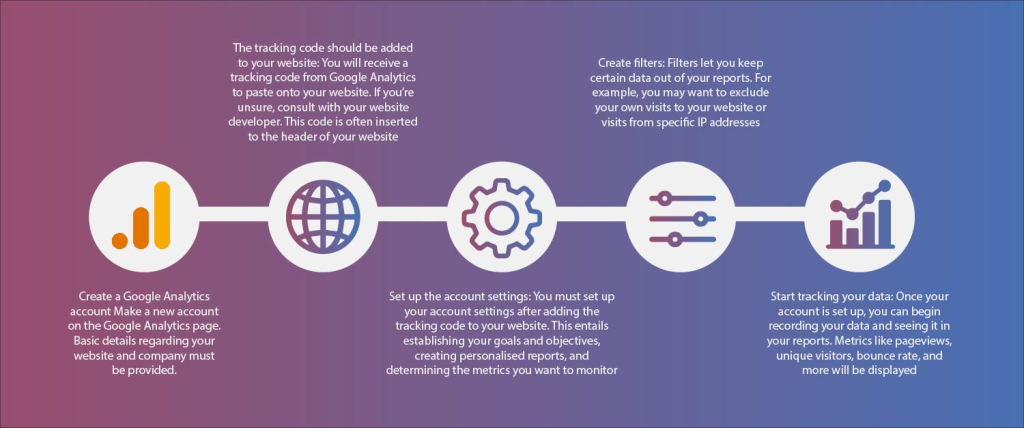
Step 1: Create Your Analytics Accounts
If you haven’t already:
- Go to analytics.google.com and create a GA4 property.
- Set up Google Tag Manager at tagmanager.google.com.
- Create ad tracking tools like Facebook Pixel or LinkedIn Insight Tag based on your ad platforms.
Step 2: Install Google Tag Manager on Your Website
Google Tag Manager (GTM) allows you to add and manage all tracking codes from one place—without editing the codebase every time.
How to Install GTM:
- Copy the GTM code snippets from your GTM dashboard.
- Paste them into your site’s header and body (usually done via your theme or builder).
- For WordPress: Use a plugin like “Insert Headers and Footers.”
- For Wix/Squarespace: Use the custom code injection option.
Kamlesh Singad says, “One dashboard, endless control—that’s the power of GTM.”
Also Read: How Often Should Content Be Updated?

Step 3: Add Google Analytics 4 Using GTM
Inside your GTM container:
- Create a new tag > Tag Configuration > GA4 Configuration
- Enter your GA4 Measurement ID (found in your Google Analytics setup)
- Choose “All Pages” as the trigger
- Save and publish
Done! Now GA4 starts collecting traffic and engagement data.
Step 4: Add Facebook Pixel with GTM
For retargeting and ad performance:
- Go to your Facebook Events Manager and create a Pixel
- Copy the Pixel ID
- In GTM, create a new tag > Facebook Pixel Base Code
- Paste the Pixel ID, and trigger it on “All Pages”
CWK Agency ensures every ad-driven website includes retargeting pixels for maximizing ad spend ROI.
Step 5: Add Additional Tracking Tags
Depending on your strategy, add:
- LinkedIn Insight Tag
- TikTok Pixel
- Twitter Conversion Tag
- Hotjar Code for heatmaps
In GTM, just create a “Custom HTML” tag and paste the script, then trigger it accordingly.
Also Read: How to Spend on Marketing the Right Way? A Strategic Guide for Maximum ROI

Step 6: Test Your Tags
Use These Tools:
- Google Tag Assistant (Chrome extension)
- Facebook Pixel Helper
- GA4 Debug View
Testing ensures your tags are firing correctly before your marketing campaigns go live.
Step 7: Set Up Conversion Events
Conversion tracking helps measure results like:
- Form submissions
- Purchases
- Clicks on key buttons
In GA4:
- Go to Admin > Events > Create Event
- Set up conditions (e.g., when a user reaches a “Thank You” page)
In Facebook:
- Use the Event Setup Tool to track button clicks or page views as conversions.
CWK Agency creates goal-specific events to link marketing efforts directly to ROI.
Step 8: Monitor and Optimize
Once tracking is live, check:
- Traffic sources (where users come from)
- Bounce rate and engagement
- Top-converting pages
- Funnel drop-offs
Kamlesh Singad uses weekly reporting dashboards to guide campaign decisions and content planning.
Common Mistakes to Avoid When Adding Tracking Codes
- Adding multiple analytics scripts directly on the site (causes conflicts)
- Forgetting to publish in GTM after changes
- Not setting up proper conversion goals
- Tracking too many random metrics without clear objectives
- Ignoring privacy laws (always add a cookie consent banner)
FAQs
Can I use Google Analytics without Google Tag Manager?
Yes, but GTM makes managing multiple scripts easier and cleaner.
Do I need coding knowledge to add tracking codes?
No, not if you’re using GTM or platforms like WordPress with plugins.
How long does it take to see data in GA4?
You’ll typically see data in real-time within minutes of installation.
Are there any privacy or legal issues with tracking?
Yes—always inform users via privacy policies and use cookie consent banners.
Which analytics tools does CWK Agency recommend most?
GA4 for behavior, GTM for management, Hotjar for user visuals, and Search Console for SEO.
Conclusion: Make Every Click Count
Knowing how to add tracking codes and analytics to your website gives you the data advantage in digital marketing. From understanding your users to optimizing your conversions, tracking is the silent engine driving your growth.
With expert advice from Kamlesh Singad and implementation best practices from CWK Agency, your website is not just a digital brochure—it’s a measurable, dynamic marketing machine.
Add your codes. Track what matters. And start making smarter decisions today.